
In the modern digital world, reliable internet access is essential. Whether you’re working remotely, streaming, studying, gaming, or browsing, your laptop’s Wi-Fi connection plays a crucial role. That’s why losing connectivity—even for a moment—can disrupt everything. In this comprehensive guide titled “Introduction Fix Wi-Fi Not Connecting on Laptop,” we explore all the possible reasons behind Wi-Fi failure and provide detailed, step-by-step solutions to help you fix the issue quickly and permanently.
You will learn why laptops struggle to connect, how to troubleshoot each cause, and how to apply long-term fixes to keep your connection stable. This article is written in a premium, authoritative, and highly engaging tone to give you a reliable, professional experience.
Common Reasons Your Laptop Is Not Connecting to Wi-Fi
Understanding why your laptop won’t connect helps you solve the problem faster. Below are the most frequent causes:
Network Adapter Problems
Your Wi-Fi adapter may be:
- Disabled
- Outdated
- Corrupted
- Incorrectly configured
Router-Related Issues
Sometimes your router—not the laptop—is the culprit due to:
- Weak signal
- Overloaded devices
- Wrong router settings
- Band issues (2.4 GHz / 5 GHz)
Windows Misconfigurations
Windows may block Wi-Fi due to:
- Incorrect DNS
- IP conflicts
- Network profile errors
- Firewall restrictions
Hardware Issues
These are less common but serious:
- Damaged Wi-Fi card
- Broken internal antenna
Internet Provider Outage
Your ISP may be experiencing downtime.
Restarting Your Laptop and Router to Fix Wi-Fi
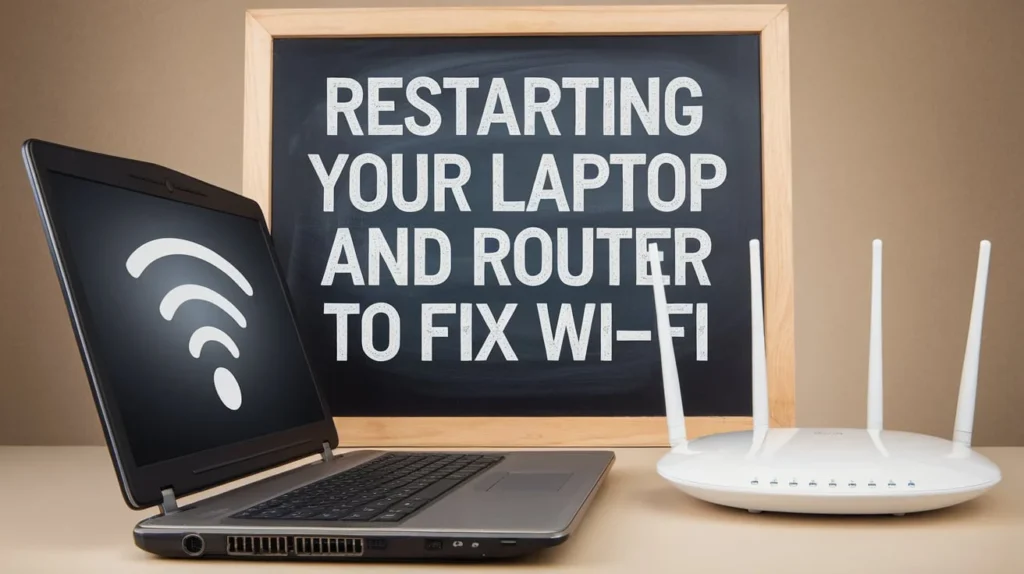
Restarting is one of the most effective quick fixes.
Why Restarting Works
- Clears temporary system glitches
- Resets network services
- Refreshes the router’s memory
How to Restart Properly
- Shut down your laptop.
- Unplug the router for 30 seconds.
- Wait for lights to stabilize.
- Restart your laptop.
Often, this alone solves the issue.
Ensuring Wi-Fi Is Enabled on Your Laptop
Check Physical and Software Controls
Laptops often include:
- A physical Wi-Fi switch
- Function keys (F2, F3, F8, or F12)
- Airplane Mode toggle
Verify Through Windows
- Click the Wi-Fi icon on the taskbar.
- Ensure Wi-Fi is ON.
- Ensure Airplane Mode is OFF.
Forgetting and Reconnecting to Your Wi-Fi Network
Old network profiles can become corrupted and block connectivity.
Steps to Forget the Network
- Open Settings > Network & Internet > Wi-Fi
- Go to Manage known networks
- Select your network → Forget
- Reconnect with your password
This creates a fresh connection profile.
Updating or Reinstalling the Wi-Fi Driver
Drivers control how your laptop interacts with hardware. A corrupted or outdated driver often causes connectivity failures.
Updating the Driver
- Press Win + X
- Open Device Manager
- Expand Network Adapters
- Right-click your Wi-Fi adapter
- Choose Update driver
Reinstalling the Driver
If updating fails:
- Right-click your Wi-Fi adapter
- Select Uninstall device
- Restart your laptop
Windows installs the driver fresh at startup.
Resetting All Network Drivers
Go to:
Settings > Network & Internet > Advanced network settings > Network reset
This restores all network components to default.
Using Windows Network Troubleshoote
The troubleshooter detects and repairs common faults automatically.
Steps
- Go to Settings > System > Troubleshoot
- Select Other troubleshooters
- Run Internet Connections
- Apply recommended fixes
This tool is helpful for identifying adapter and DNS issues.
Checking Router Settings and Frequency Bands
Two Wi-Fi frequency bands exist:
- 2.4 GHz → longer range
- 5 GHz → faster but shorter range
Try Switching Bands
- Use 2.4 GHz if you’re far from the router
- Use 5 GHz for speed, if nearby
- Rename SSIDs for clarity (e.g., Home-2.4G, Home-5G)
Sometimes laptops fail to connect to a specific band.
Fixing IP and DNS Issues to Restore Internet
Corrupted DNS cache or wrong IP settings often block Wi-Fi.
Reset IP Configuration
Open Command Prompt (Admin), then run these commands:
netsh winsock reset
netsh int ip reset
ipconfig /release
ipconfig /renew
ipconfig /flushdns
Restart afterward.
Switch to Google DNS
Go to:
Control Panel > Network and Sharing Center > Change adapter settings
Wi-Fi → Properties → IPv4 → Use the following DNS:
8.8.8.8
8.8.4.4
This fixes unstable DNS issues.
Checking Firewall, Antivirus, and VPN Restrictions
Security tools sometimes block internet access.
Temporarily Disable:
- Windows Firewall
- Third-party antivirus
- VPN services
After testing, ensure to re-enable them for safety.
Resetting the Router to Fix Wi-Fi Issues
If router misconfigurations are the cause, a reset helps.
Soft Reset
- Restart the router
- Change SSID and password
- Update firmware
Hard Reset
Use the reset pin to restore factory settings.
(Reconfigure your Wi-Fi afterward.)
Checking for Windows Updates
Windows updates can fix Wi-Fi bugs.
Steps:
- Go to Settings > Windows Update
- Install all updates
- Restart your laptop
Outdated system files often cause connectivity problems.
Checking Hardware Problems on the Laptop
If software fixes fail, hardware might be the issue.
Possible Hardware Concerns
- Loose Wi-Fi antennas
- Damaged Wi-Fi card
- Internal motherboard issues
What to Do
- Visit a technician
- Replace Wi-Fi card (cheap and easy)
- Use a USB Wi-Fi adapter as a quick alternative
Using a USB Wi-Fi Adapter as a Temporary Fix
A USB Wi-Fi dongle is:
- Cheap
- Easy to use
- Often faster than built-in Wi-Fi
If your laptop’s internal card is faulty, this is the fastest workaround.
Advanced Fix: Resetting TCP/IP Stack in Windows
This method fixes deep network corruption issues.
Commands
Open Command Prompt (Admin):
netsh interface ipv4 reset
netsh interface ipv6 reset
netsh interface tcp reset
Restart your laptop.
Checking If Your ISP Is Down
Sometimes everything is fine on your end.
How to Check
- Test on another device
- Contact your internet provider
- Visit outage-detection sites
If all devices fail to connect, it’s an ISP issue.
Table Quick Wi-Fi Troubleshooting Overview
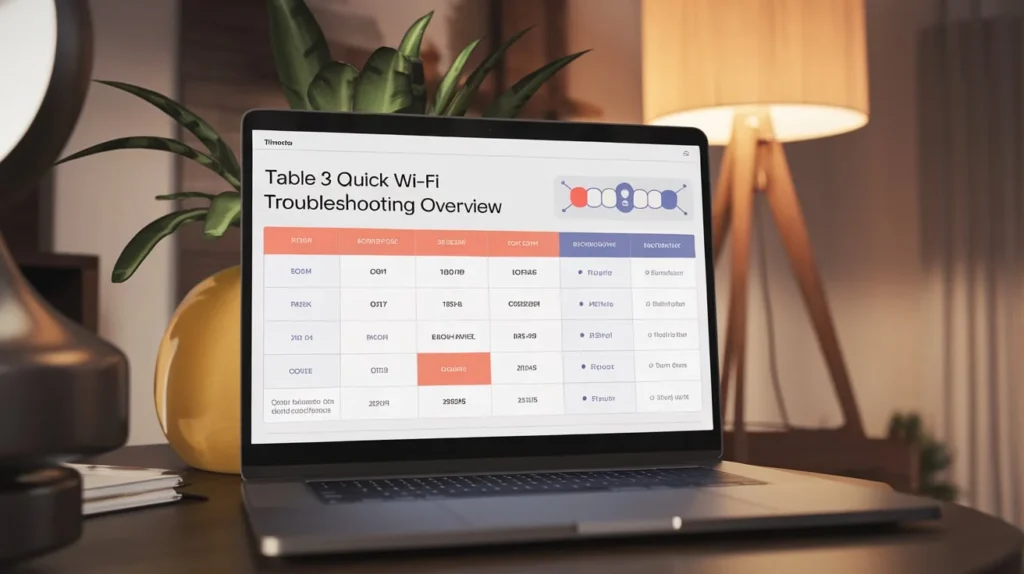
| Issue | Possible Cause | Solution |
|---|---|---|
| Laptop won’t detect Wi-Fi | Disabled adapter | Enable Wi-Fi, update drivers |
| Wi-Fi connected but no internet | DNS/IP issue | Reset DNS, use Google DNS |
| Slow internet | Router overload | Restart router, switch bands |
| Frequent disconnects | Weak signal | Move closer, use 2.4 GHz |
| No networks available | Hardware issue | Check antennas, use USB adapter |
Best Practices to Prevent Future Wi-Fi Problems
Keep your drivers updated
Old drivers cause 80% of connectivity issues.
Restart router weekly
Prevents cache overload.
Use a strong and unique Wi-Fi password
Protects bandwidth from neighbors.
Avoid placing routers near walls or metal objects
Improves signal strength.
Upgrade old routers
If your router is 5+ years old, consider replacing it.
FAQs
1. Why is my laptop not detecting any Wi-Fi networks?
This usually means your Wi-Fi adapter is disabled, outdated, or corrupted. Updating or reinstalling the driver often fixes it.
2. Why is my laptop connected to Wi-Fi but there’s no internet?
DNS failure or IP conflict may be the cause. Resetting DNS or switching to Google DNS helps.
3. Can antivirus software block my Wi-Fi connection?
Yes. Security software can block network access. Disable it temporarily to test.
4. How do I know if my router is the problem?
Check other devices. If none connect, the router is likely faulty or overloaded.
5. Is using a USB Wi-Fi adapter a good solution?
Yes, especially if your internal Wi-Fi card is damaged. It’s fast, cheap, and highly effective.
Conclusion
Wi-Fi issues can be frustrating, but they are almost always fixable. By following this guide on “Introduction Fix Wi-Fi Not Connecting on Laptop,” you now understand every major cause and solution, from simple restarts to advanced IP and DNS fixes. Whether the problem is with your laptop, router, or Windows itself, these steps will help you restore stable connectivity and prevent future issues.
With the right maintenance, updates, and network hygiene, you can enjoy uninterrupted internet on your laptop—anytime, anywhere.